Set Up IPTV Canada in 5 Minutes
Step-by-step instructions for every device. We use IBO Player and Hot Player — the two best apps for OntarioIPTV.ca in 2026.
~5 min
Average setup time
11
Supported devices
Free
IBO & Hot Player apps
Before you start
Tick all four — then pick your device below.
No subscription yet? Start a free trial →
Your login credentials
From your OntarioIPTV.ca welcome email. Use copy buttons — don't type manually.
http://server.example.com:8080
Starts with http://, no trailing slash
your_username
Case-sensitive — copy exactly
your_password
Case-sensitive — copy exactly
The values above are placeholders. Use the real credentials from your welcome email. Credentials not in your inbox? Contact support — we resend in minutes.

Amazon Firestick & Fire TV
Most PopularFire TV Stick 4K, Fire TV Cube, Fire TV 4K Max — IBO Player & Hot Player via Downloader. Takes about 5 minutes.
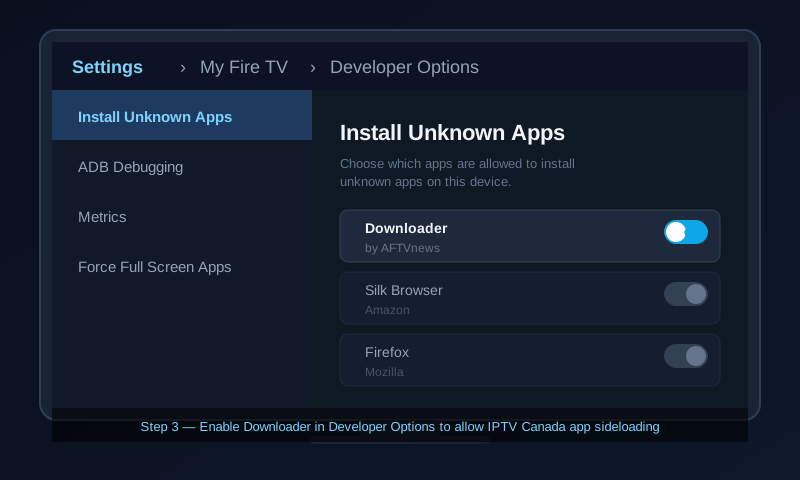
Enable Install Unknown Apps
Go to Settings → My Fire TV → Developer Options → Install Unknown Apps. This lets you install apps from outside the Amazon App Store.
Install Downloader
Search Downloader on your Firestick home screen. Install the free app by AFTVnews. Open it and accept all permissions.
Allow Downloader in Developer Options
Go back to Settings → My Fire TV → Developer Options → Install Unknown Apps → Downloader → ON.
Get the IBO Player APK link
Contact our support team by phone or WhatsApp (+1 437 703-0360) — we send the verified IBO Player APK link within minutes.
Download & install IBO Player
Open Downloader. Paste the APK link. Tap Go. When the download finishes, tap Install → Open. You can delete the APK after install.
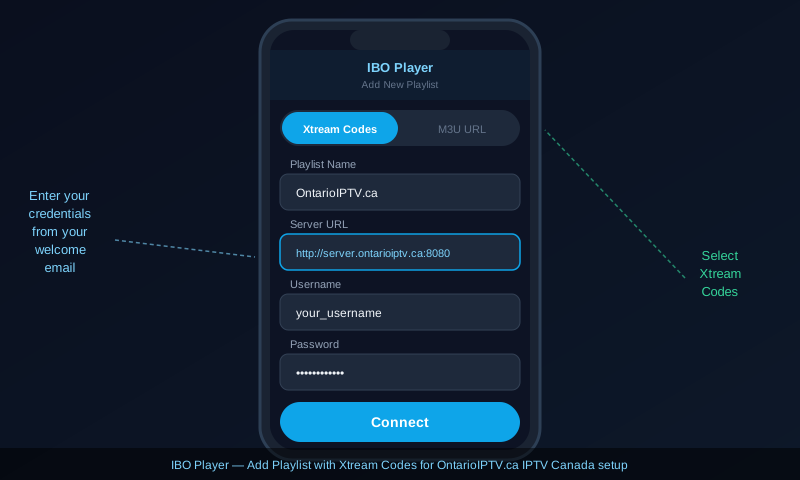
Add Playlist → Xtream Codes
Inside IBO Player tap Add Playlist → Xtream Codes API. Enter your Server URL, Username, and Password from your welcome email. Tap Connect.
Browse Live TV → Canada
Channel list loads in 30–90 seconds. Tap Live TV → Canada for all Canadian channels. Long-press any channel to add to Favourites. EPG loads automatically.
⚡ Pro tips
- Ethernet adapter ($12–18 CAD) on the Firestick micro-USB port — kills buffering during live sports.
- Unplug from the power adapter (not just the TV) for 30 sec every week to fully clear RAM.
- Clear cache monthly: Settings → Applications → Manage All Applications → [App] → Clear Cache.
- Channel frozen? Press Back once and re-enter — reconnects the stream without restarting.
Follow the same Downloader setup (Steps 1–3 above) then install Hot Player instead.
Enable Install Unknown Apps & install Downloader
Same as IBO Player steps 1–3. If you already did this, skip ahead.
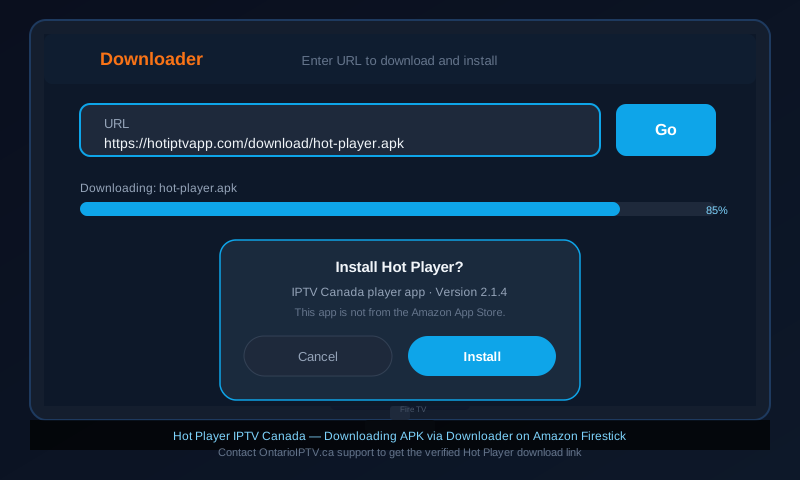
Get the Hot Player APK link
Contact support (+1 437 703-0360) and we send the Hot Player APK link. Or visit hotiptvapp.com/download on your phone.
Download & install Hot Player via Downloader
Open Downloader, paste the Hot Player APK URL, press Go. Tap Install → Open. Delete the APK after install.
Add Playlist → Xtream Codes
In Hot Player tap Add Playlist → Xtream Codes. Enter your Server URL, Username, Password. Tap Save.
Tap Live TV → Canada and start watching
All 30,000+ channels load in under 60 seconds. Browse by category — Canada, Sports, Movies, Kids, 4K.
You're all set — enjoy IPTV Canada on your Firestick!
Channels loaded? Tap Live TV → Canada. Use search to find any Canadian channel by name.

Android TV Box
Nvidia Shield, MECOOL, Chromecast with Google TV, Sony & Hisense Android TVs — Google Play, no sideloading. Takes about 3 minutes.
- Open Google Play Store → search IBO Player → Install
- Open → tap Add Playlist → Xtream Codes
- Enter your Server URL, Username, Password
- Tap Connect — loads in 30–60 sec
- Tap Live TV → Canada to start
- Open Google Play Store → search Hot Player → Install
- Open → tap Add Playlist → Xtream Codes
- Enter your Server URL, Username, Password
- Tap Save — channels load automatically
- Tap Live TV → cast via Google Cast

Smart TV
Samsung (Tizen), LG (webOS), Vizio, Hisense, TCL. Takes about 8 minutes.
Best option for Vizio, Hisense, TCL: Plug a Firestick 4K into any HDMI port — full IBO Player/Hot Player support with zero workarounds. Smart TV app stores have limited IPTV apps.
Samsung (Tizen OS)
IBO Player or Smart IPTV
- Press Home → Apps → search IBO Player → Install
- If not found, install Smart IPTV instead
- Open Smart IPTV — note your TV's MAC address
- On your phone visit siptv.eu → enter MAC + paste your M3U URL → Upload
- Press Reload on TV — channels appear
LG (webOS)
IBO Player or SS IPTV
- Press Home → LG Content Store
- Search IBO Player or SS IPTV → Install
- Open SS IPTV → Settings → Playlist → Add New → M3U URL
- Paste your OntarioIPTV.ca M3U URL → Save
- Press Reload — channels load by category

iPhone & iPad
iOS 14+ · IBO Player & Hot Player from the App Store — no sideloading needed. Takes about 3 minutes.
- Open App Store → search IBO Player → Install
- Open → tap Add Playlist → Xtream Codes
- Enter Server URL, Username, Password
- Tap Connect — channels load
- Tap Live TV → filter by Canada
- Tap AirPlay to cast to Apple TV
- Open App Store → search Hot Player → Install
- Open → tap Add Playlist → Xtream Codes
- Enter Server URL, Username, Password
- Tap Save — channels load
- Browse Live TV → Canada
- Use AirPlay to cast to Apple TV

Android Phone & Tablet
Android 8.0+ · Samsung Galaxy, Google Pixel, OnePlus, Motorola — Google Play, instant install. Takes about 3 minutes.
- Open Google Play Store → search IBO Player → Install
- Open → tap Add Playlist → Xtream Codes
- Enter Server URL, Username, Password → Connect
- Tap Live TV → Canada
- Tap Cast icon to stream to Chromecast or Android TV
- Open Google Play Store → search Hot Player → Install
- Open → tap Add Playlist → Xtream Codes
- Enter Server URL, Username, Password → Save
- Tap Live TV → Canada for all Canadian channels
Apple TV
tvOS 14+ · IBO Player from App Store, or AirPlay from iPhone. Takes about 4 minutes.
Option 1 — IBO Player (App Store)
- Open App Store on Apple TV → search IBO Player → Install
- Open → Add Playlist → Xtream Codes
- Enter Server URL, Username, Password using Siri Remote or paired iPhone keyboard
- Tap Connect → tap Live TV
Option 2 — AirPlay from iPhone
No extra app needed on Apple TV
- Set up IBO Player or Hot Player on your iPhone first
- Start any IPTV Canada channel on iPhone
- Tap the AirPlay icon in the player
- Select your Apple TV — streams instantly

Roku
Roku Stick, Roku TV, Roku Ultra — Smart IPTV via M3U URL. IBO Player is not available on Roku OS. Takes about 10 minutes.
Easier option: Plug a Firestick 4K into an HDMI port alongside your Roku. Better app support, no M3U workarounds, better UI.
Add Smart IPTV from Roku Channel Store
Navigate to Streaming Channels → Search Channels, type Smart IPTV and add it. IBO Player and Hot Player are not currently on Roku OS.
Note your device code
Open Smart IPTV on your Roku. The welcome screen shows a device code and a website URL. Write the code down.
Register your M3U URL
On your phone, visit the Smart IPTV website shown on screen. Enter your device code and paste your M3U URL from your OntarioIPTV.ca welcome email. Click Upload.
Reload and browse
Back on Roku, press Reload inside Smart IPTV. Your full channel list appears — browse by category.

BuzzTV Box
All BuzzTV models (XR4000, X5, X Pro) — Android-based, IBO Player & Hot Player from Google Play or APK. Takes about 5 minutes.
Check for Google Play Store
Most BuzzTV models (XR4000, X5, X Pro) include Google Play. Open it and search IBO Player or Hot Player — install directly and skip to step 3.
No Play Store? Enable Unknown Sources + install via APK
Go to Settings → Security → Unknown Sources → ON. Use File Manager or the built-in browser. Contact us and we send the verified APK link within minutes.
Open IBO Player → Add Playlist → Xtream Codes
Launch IBO Player. Tap Add Playlist → Xtream Codes. Enter your Server URL, Username, and Password exactly from your welcome email.
Tap Connect and start watching
Channel list loads in 30–60 seconds. Tap Live TV → Canada. EPG programme guide loads automatically.
BuzzTV tip: Ethernet cable gives rock-solid 4K streams. BuzzTV boxes handle 4K H.265 natively. Need the APK? Call +1 (437) 703-0360.

Formuler & Dreamlink
All models — MyTVOnline2 (built-in) or IBO Player via APK. Xtream Codes supported. Takes about 5 minutes.
Method 1 — MyTVOnline2
Built-in app — easiest, no install needed
- Open MyTVOnline2 from the home screen
- Tap Add Portal → Add Playlist
- Choose Xtream Codes format
- Enter your Server URL, Username, Password
- Save — channels load automatically
- Navigate to Live TV → Canada
Method 2 — IBO Player via APK
More features, better EPG
- Go to Settings → Security → Unknown Sources → ON
- Contact support — we send the IBO Player APK link
- Open the browser → navigate to the APK link → Download
- Open File Manager → find APK → Install
- Open IBO Player → Add Playlist → Xtream Codes → Connect
Formuler tip: Ethernet for rock-solid 4K. Formuler handles 4K H.265 natively. For live portal setup help: +1 (437) 703-0360.


Windows & Mac
IBO Player (Microsoft Store / Mac App Store) or VLC with M3U URL. Takes about 4 minutes.
Windows — IBO Player
Microsoft Store or iboplayer.pro
- Open Microsoft Store → search IBO Player → Install
- Click Add Playlist → Xtream Codes
- Paste Server URL, Username, Password
- Click Connect — channels load
- F11 for fullscreen
Mac — IBO Player
Mac App Store
- Open Mac App Store → search IBO Player → Install
- Click Add Playlist → Xtream Codes
- Paste Server URL, Username, Password
- Click Connect — channels load
- Cmd+F for fullscreen · AirPlay to cast
Alternative — VLC Media Player (Windows & Mac)
Free, open-source. Download from videolan.org. Best for quick M3U testing.
- Install VLC from videolan.org
- Open VLC → Media → Open Network Stream
- Paste your M3U URL
- Click Play
- View → Playlist to browse channels
- Double-click any channel to switch
Troubleshooting
Most issues resolve in under 2 minutes. Still stuck? Contact our support team →
Fix in order:
1. Connect via ethernet cable — eliminates most buffering instantly.
2. Restart router and modem: unplug both 30 sec, modem first, wait 60 sec, then router.
3. On Wi-Fi: switch to 5 GHz band.
4. Reduce other devices on your network.
5. 4K buffering only? Switch that channel to HD — 4K requires 50+ Mbps minimum.
http:// with no trailing slash. Try switching between Xtream Codes and M3U URL. If still failing, contact support — credentials may need reissuing.Which IPTV app should you use?
All apps below are free and work with your OntarioIPTV.ca credentials. IBO Player and Hot Player are our top picks for 2026 — they get the most updates and have the best EPG support.
| App | Works on | EPG | VOD | Best for |
|---|---|---|---|---|
| IBO Player ⭐ | Firestick, Android TV, Android, iPhone, iPad, Apple TV, Windows, Mac | All devices — #1 pick | ||
| Hot Player ⭐ | Firestick, Android TV, Android, iPhone, iPad, Apple TV | All devices — #2 pick | ||
| TiviMate | Firestick, Android TV, Android Phone | Firestick power users | ||
| IPTV Smarters | All devices incl. iPhone, Apple TV, Windows | Multi-device households | ||
| MyTVOnline2 | Formuler, Dreamlink boxes | Formuler / Dreamlink built-in | ||
| Smart IPTV | Samsung TV, Roku | — | Samsung TVs & Roku | |
| SS IPTV | LG Smart TV | — | LG webOS TVs | |
| GSE Smart IPTV | iPhone, iPad | iPad picture-in-picture | ||
| VLC | Windows, Mac, Android | — | — | Quick M3U testing |
Ready to start watching?
30,000+ live channels in HD & 4K — Canadian sports, French channels, and international content. Plans from $39.99 CAD. Try free, no credit card required.
Phone & WhatsApp: +1 (437) 703-0360 · support@ontarioiptv.ca · Mon–Sat 8 AM–8 PM ET